 Lupita
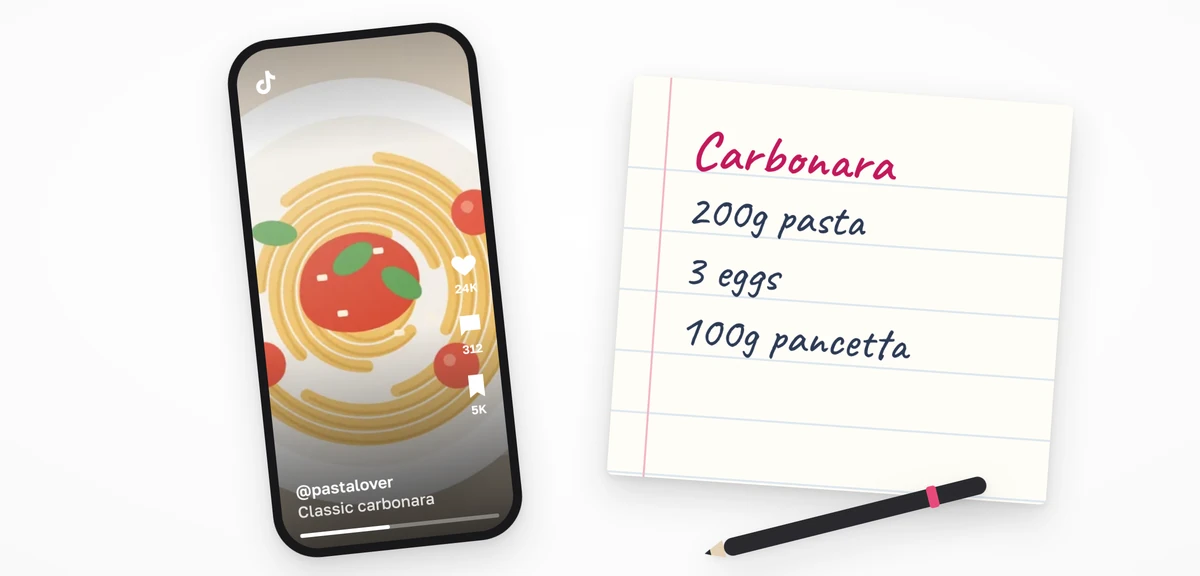 TikTok Recipes
How to Import a Recipe from TikTok to Your iPhone
You found the perfect pasta on TikTok. You hit save. Then you're in the kitchen, the screen keeps locking, you're rewinding every 10 seconds, and the creator talks too fast to catch the measurements. There's a better way: copy the link, paste it once, get a complete recipe card with ingredients in grams — saved to your phone, no internet needed.
The problem with saving recipes from TikTok
TikTok's built-in save feature saves the video — not the recipe. You have a library of 40 cooking videos but no way to cook from them without watching each one. The ingredients are buried in fast-cut voiceovers, flashed on screen for 2 seconds, or mentioned once in a "dump and stir" format that assumes you already know what you need.
The other approach is typing everything out manually. The problem: a typical recipe video is 45–90 seconds long, the creator speaks quickly, uses shorthand ("season to taste", "a handful of", "some olive oil"), and the screen auto-locks before you're done writing. It takes 5–10 minutes per recipe and the result is often incomplete.
Lupita solves this: one paste, one tap, 60 seconds, full recipe card — ingredients, quantities, steps. You do it once and cook from the saved card forever.
What you need
An iPhone running iOS 16 or later, the TikTok app, and Lupita — a free recipe saver that extracts ingredients from short-form videos using AI. Lupita gives you 5 free imports on install, no account required. The unit converter (grams ↔ cups ↔ tablespoons) is free forever.
Four steps to save a TikTok recipe
-
1Copy the video link in TikTok Open TikTok and find the recipe video. Tap the Share button (the arrow icon on the right side), then tap Copy link. The URL is now on your clipboard — it looks like
tiktok.com/@username/video/… -
2Open Lupita and paste the link Switch to Lupita. Tap the import field at the top — the app detects the link in your clipboard and offers to paste it automatically. Confirm and tap Import.
-
3Wait 20–60 seconds Lupita's AI processes the video: reads on-screen text, listens to the audio, and extracts every ingredient with its quantity. Most recipes finish in under a minute. You'll see a progress indicator.
-
4Review, scale, and cook You get a full recipe card — title, ingredients with exact weights, step-by-step instructions. Change the number of servings and every amount updates automatically. Tap Cook Mode for large-font steps with built-in timers and the screen always on.
How Lupita extracts the recipe
Unlike simple screenshot tools or OCR apps, Lupita processes the video itself — not just a single frame. Here's what it does in the 20–60 seconds after you paste the link:
- Fetches the video from TikTok's servers using the public link — no login required on your part.
- Transcribes the audio using speech recognition. This catches spoken measurements like "half a cup of flour" or "season generously with salt."
- Reads on-screen text (OCR) — ingredient lists that flash on screen, caption overlays, and text in the video description.
- Structures the data: Lupita's AI normalizes the extracted text into a structured recipe — title, ingredients with quantities, cooking steps — and converts all measurements to grams using real ingredient density values.
- Saves locally: The final recipe is stored on your device. No cloud sync, no account needed, works offline.
What types of TikTok recipes work best
Lupita handles spoken measurements ("add two cups of flour"), on-screen text and captions, fast-cut videos, silent videos with text-only instructions, and multi-language content. The one limitation: if a creator never mentions quantities at all, the app lists the ingredients and leaves amounts blank — you fill those in yourself.
Can I import from Instagram and YouTube too?
Yes. The same one-paste method works for Instagram Reels, YouTube Shorts, and Pinterest videos. You don't need a different app for each platform. Lupita handles all four with the same import flow.
Troubleshooting — if the import doesn't work
Most imports succeed on the first try. Here's what to check if something goes wrong:
- "Invalid link" error: Make sure you copied the full TikTok URL, not just the video title. In TikTok, tap Share → Copy link (not "Copy URL" from the browser). The link should start with
tiktok.com/@orvm.tiktok.com/ - Import shows no ingredients: The video may rely entirely on visual demonstrations without voiceover or text — very rare but it happens with some "POV cooking" content. Lupita will show you what it found and let you fill in the blanks.
- Import takes more than 2 minutes: This sometimes happens on slow connections. The import continues in the background — you can close Lupita and come back.
- Quantities are "to taste" or approximate: Lupita faithfully transcribes what the creator said. If they said "a big pinch of salt," that's what the recipe shows. You can edit it before saving.
What happens to the measurements?
Lupita stores ingredients in grams internally and converts to any unit on demand — using real density values for 184 ingredients. This matters because volume measurements vary by ingredient: a "cup" of flour is not the same weight as a "cup" of sugar.
In the recipe card you can switch between:
- Grams — precise, great for baking, used by most professional recipes and most non-US food creators
- Cups / tablespoons / teaspoons — familiar to US home cooks, useful for cooking without a scale
If a TikTok creator based in the UK gives amounts in grams and you prefer cups, one tap in Lupita converts the entire recipe. The conversion uses ingredient-specific density values — not the generic "1 cup = 240 g" approximation that's wrong for most ingredients.
Tips for getting the best results
- Import immediately after watching, not days later. TikTok sometimes removes videos or the creator makes them private — and once it's gone, the link doesn't work.
- Check the description too. Many TikTok food creators put the full ingredient list in the video caption. Lupita reads this automatically, but if the import is missing items, the description often has the answer.
- Edit the servings first. Once you change the serving count in Lupita, every measurement scales proportionally. If the recipe is for 4 people and you're cooking for 2, tap Servings → 2 and all amounts halve automatically.
- Use Cook Mode for the kitchen. Cook Mode shows one step at a time in a large font, keeps the screen on, and has built-in countdown timers. You don't need to touch your phone with floury hands.
- Add your own notes. After import you can edit the recipe — add notes like "I used less sugar" or "works with almond milk" — and your version is saved separately from the original.
Stop pausing videos. Start cooking.
Paste a TikTok, Instagram or YouTube link. Lupita pulls out the full recipe in under a minute. 5 free imports, no account needed.
Frequently asked questions
Can I import recipes from Instagram and YouTube too?
Yes. Lupita works with TikTok, Instagram Reels, YouTube Shorts, and Pinterest — same one-paste method for all four platforms.
Does Lupita work without internet after import?
Yes. Once a recipe is saved it works completely offline — ingredients, steps, timers, unit conversion. You can cook in a basement with no signal.
What if the creator doesn't mention quantities?
Lupita reads on-screen text and captions in addition to audio. If a recipe has no quantities at all, the app lists ingredients and you add amounts manually.
How many recipes can I save for free?
5 imports on install, plus the unit converter (grams ↔ cups ↔ tablespoons) is free forever. Paid plans start at $2.99/month for 15 imports.
Does it work with TikTok videos in other languages?
Yes. Lupita detects the video language automatically and extracts the recipe in that language.
Can I edit the recipe after importing?
Yes — every field is editable. You can change ingredient names, adjust quantities, reorder steps, add notes, and set allergen flags. Your edits are saved locally and don't affect the original video.
What if the video gets deleted from TikTok?
Once you've imported a recipe into Lupita, it's saved on your device permanently. Even if the creator deletes the video or makes it private, your saved recipe is unaffected. This is why importing right after you find a recipe is better than bookmarking the video.
Does Lupita work with TikTok Live cooking streams?
No — TikTok Live streams don't have a shareable URL the same way recorded videos do. Lupita works with recorded TikTok videos, Instagram Reels, YouTube Shorts, and Pinterest videos.