 Lupita
 Instagram Recipes
How to Save a Recipe from Instagram Reels to Your iPhone
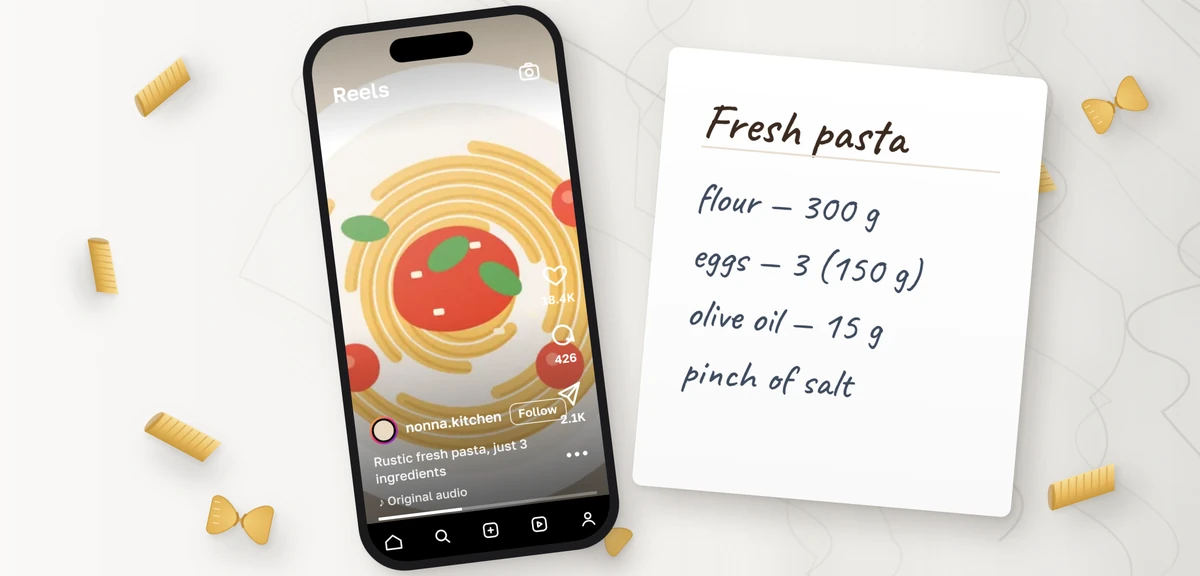
You found the perfect pasta on Instagram. You double-tapped, closed the app, and forgot the account. Or you bookmarked the Reel — and now you have 200 saved posts and no way to find the one you wanted. There is a faster way: copy the link, paste it in Lupita, get a complete recipe card with ingredients in grams — saved to your phone, offline, forever.
Why bookmarking an Instagram Reel isn't enough
Instagram's built-in save feature archives the post, not the recipe. You still have to watch the video to find the ingredient list, rewind for quantities, and squint at text that's on screen for one second. The creator may also delete the video or go private — and your bookmark turns into a dead link.
Manual typing solves the missing-recipe problem but creates a new one: a 60-second Reel contains 10–15 ingredients, mixed units (grams, cups, "a handful"), and steps that move too fast to type while watching. It takes 5–10 minutes per recipe.
Lupita solves this: one paste, one tap, 60 seconds, full recipe card. The video's ingredients, measurements, and steps land in a structured format on your phone — permanently, even if the original Reel disappears.
What you need
An iPhone running iOS 16 or later, the Instagram app (or a browser), and Lupita — a free recipe saver that extracts ingredients from short-form videos using AI. Lupita gives you 5 free imports on install, no account required. The unit converter is free forever.
Three ways to copy an Instagram Reel link
Instagram doesn't put "Copy link" in the most obvious place, so here are all three methods:
- Three-dot menu: Open the Reel, tap the … (three dots) in the top-right corner, then tap Copy link.
- Share sheet: Tap the paper-plane (Share) icon below the Reel, then tap Copy link at the bottom of the sheet.
- From a browser: Open the Reel on instagram.com, copy the URL from the address bar. It looks like
instagram.com/reel/XXXXXXXXXXX/
All three formats work in Lupita. If the Reel is from a public account, no Instagram login is needed.
Four steps to save an Instagram recipe
-
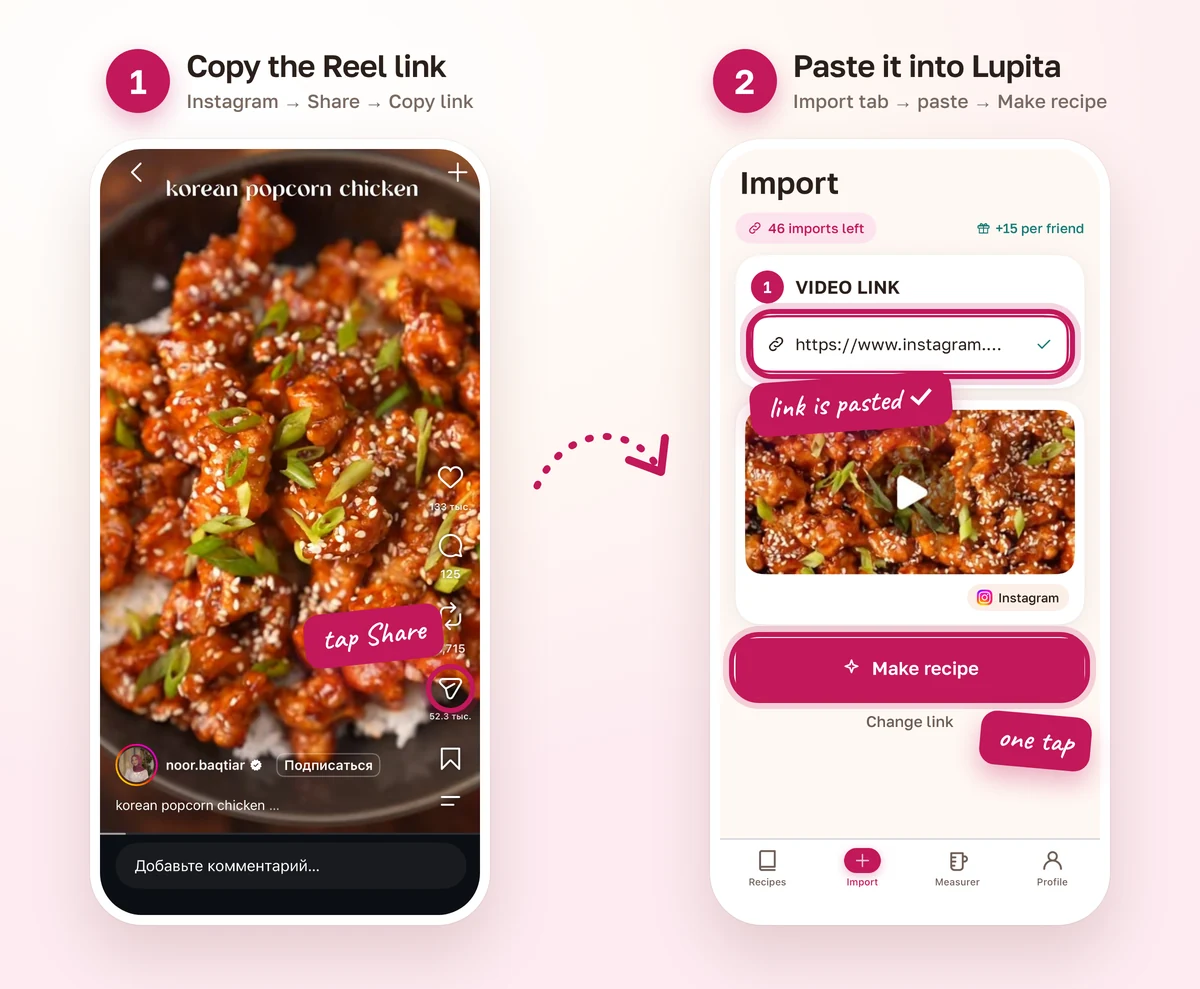
1Copy the Reel link In Instagram, tap the … menu on the Reel and select Copy link. The URL is now on your clipboard.
-
2Open Lupita and paste Switch to Lupita. Tap the import field at the top — the app detects the link and offers to paste automatically. Confirm and tap Import.
-
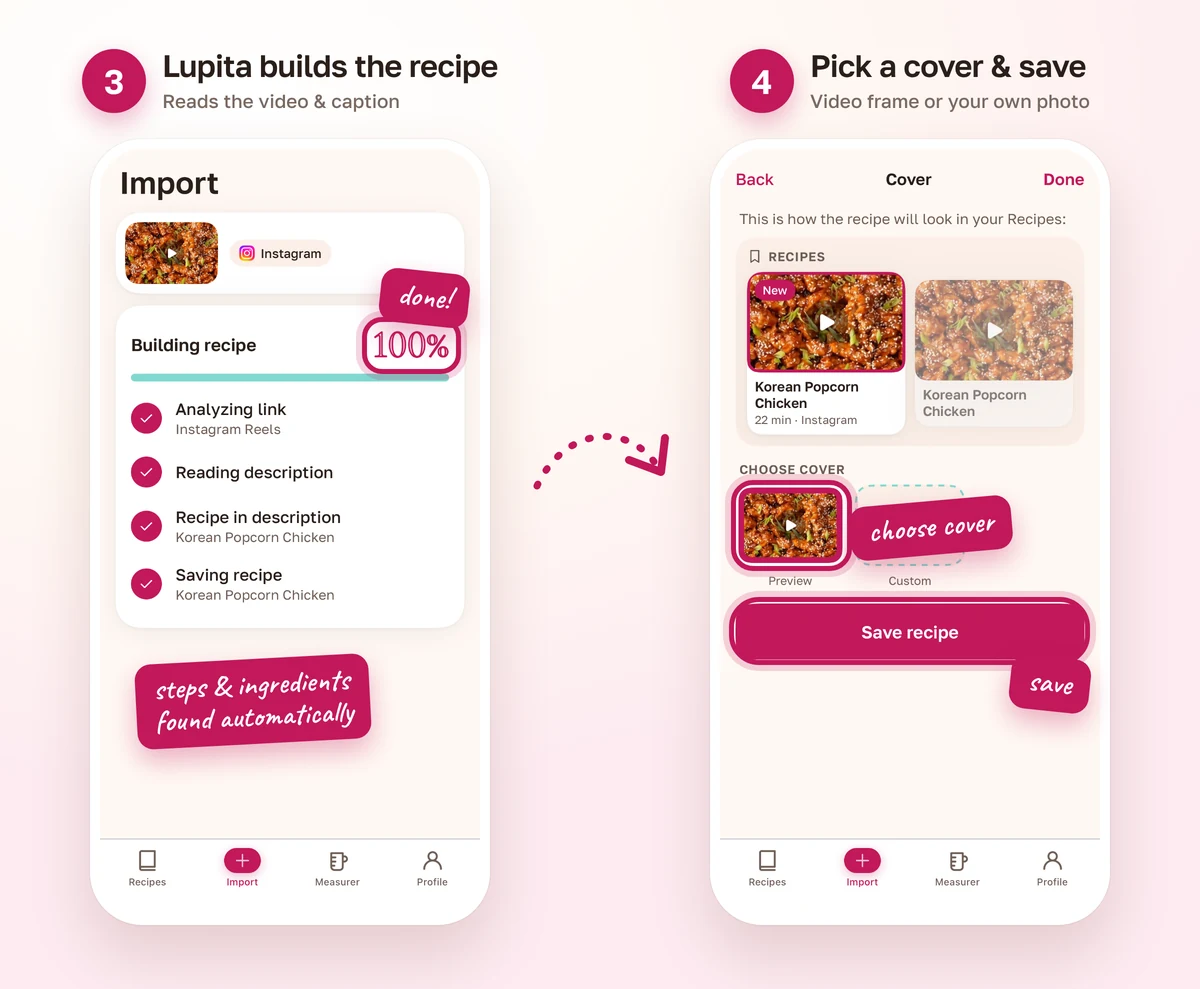
3Wait 20–60 seconds Lupita listens to the creator's voiceover, reads on-screen text and captions, then normalises everything into a single ingredient list with quantities. Most Reels finish in under a minute.
-
4Review the recipe card You get a full recipe card: title, ingredients with weights, step-by-step instructions. Pick a cover photo from the video frames and save.
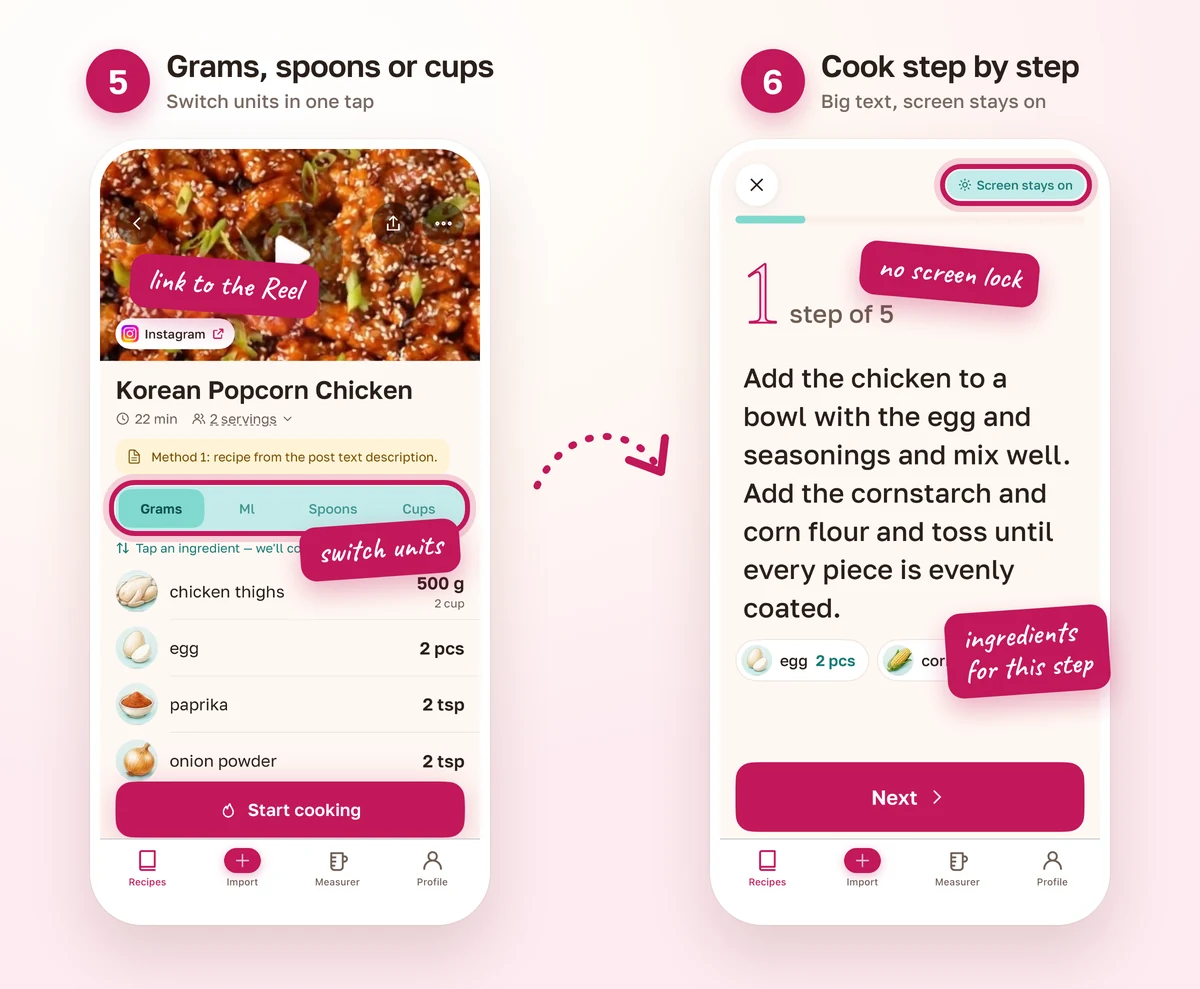
Change the serving count and every amount scales automatically. Tap Cook Mode for large-font steps that keep the screen on while you cook.
How Lupita reads an Instagram recipe
Short-form recipe videos pack ingredients into three different places at once: spoken audio ("add two cups of flour"), on-screen text overlays, and the post caption. Lupita reads all three:
- Fetches the Reel from Instagram's servers using the public link — no login required.
- Transcribes the audio with speech recognition, catching spoken measurements and step descriptions.
- Reads on-screen text (OCR) — ingredient cards, flashed text, and frame-by-frame overlays.
- Reads the caption — many food creators post the full ingredient list in the description. Lupita pulls this automatically.
- Structures and converts: The AI merges all sources, removes duplicates, and converts all amounts to grams using real density values for each ingredient. See the grams-to-cups guide if you want to understand how those conversions work.
- Saves locally: The recipe is stored on your device. No cloud sync, works offline.
Instagram recipes and measurement conversions
European and UK food creators on Instagram almost always give amounts in grams and millilitres. US-based creators typically use cups, tablespoons, and teaspoons. Lupita stores everything internally in grams and converts on demand — so a recipe filmed in Paris and a recipe filmed in Texas both show up in whatever unit you prefer.
If you need to understand a specific conversion — like how many grams are in a tablespoon of a particular ingredient — Lupita handles this automatically per ingredient, not with a flat "1 tablespoon = 15 g" approximation that is wrong for most foods. You can also use the standalone grams-to-cups converter or cups-to-grams converter for quick lookups.
Works with TikTok and YouTube too
The same one-paste method works for TikTok recipes, YouTube Shorts, and Pinterest videos. You don't need a different workflow for each platform — Lupita handles all four from the same import field.
Troubleshooting — if the import doesn't work
- Private account: Lupita can only fetch Reels from public accounts. If the creator has a private profile, the import will fail.
- "Invalid link" error: Make sure the URL starts with
instagram.com/reel/orinstagram.com/p/. Links to Stories or Highlights don't work because Instagram makes those private. - No ingredients extracted: The creator may have used only visual demonstration without audio or text. Lupita will show what it found and let you add amounts manually.
- Caption is in a language you don't read: Lupita imports the recipe as-is. You can tap any ingredient name to edit it after import.
Tips for better results
- Import right after you find the recipe. Creators delete Reels or switch to private. Your saved Lupita card survives either way.
- Check the caption before importing. If the creator posted the full recipe in the caption, the import will be especially accurate.
- Adjust servings first. Set the serving count before you start cooking and all quantities scale proportionally.
- Share directly from Instagram. Tap the Share icon in Instagram → tap Lupita in the share sheet. This skips the copy-paste step entirely and opens the import with the link pre-filled.
Stop rewinding Reels. Start cooking.
Paste any Instagram, TikTok, or YouTube link. Lupita pulls out the full recipe in under a minute. 5 free imports, no account needed.
Frequently asked questions
Does Lupita work with TikTok and YouTube too?
Yes. Lupita works with Instagram Reels, TikTok, YouTube Shorts, and Pinterest — one paste, any platform.
Can I copy the Instagram link from a browser?
Yes. Open the Reel on instagram.com, copy the URL from the address bar, and paste it into Lupita. It works the same way as copying from the app.
What if the recipe is only in the caption, not spoken in the video?
Lupita reads the post caption automatically alongside the video audio and on-screen text. Caption-only recipes import just as accurately as spoken ones.
Does it work with Instagram Stories?
No — Instagram Stories are private by default and don't have a permanent shareable URL. Lupita works with Reels and regular posts from public accounts.
What happens if the creator deletes the Reel?
Once you've imported a recipe into Lupita, it's saved on your device permanently. Even if the creator deletes the Reel, your saved recipe is unaffected.
How many recipes can I save for free?
5 imports on install, plus the unit converter (grams ↔ cups ↔ tablespoons) is free forever. Paid plans start at $2.99/month for 15 imports.
Can I edit the recipe after importing?
Yes — every field is editable. You can change ingredient names, adjust quantities, reorder steps, add notes, and mark allergens. Your edits are saved locally.
Does Lupita support Instagram Reels in other languages?
Yes. Lupita detects the video language automatically and extracts the recipe in that language. You can then edit ingredient names into your preferred language after import.