 Lupita
 YouTube Recipes
How to Save a Recipe from YouTube to Your iPhone
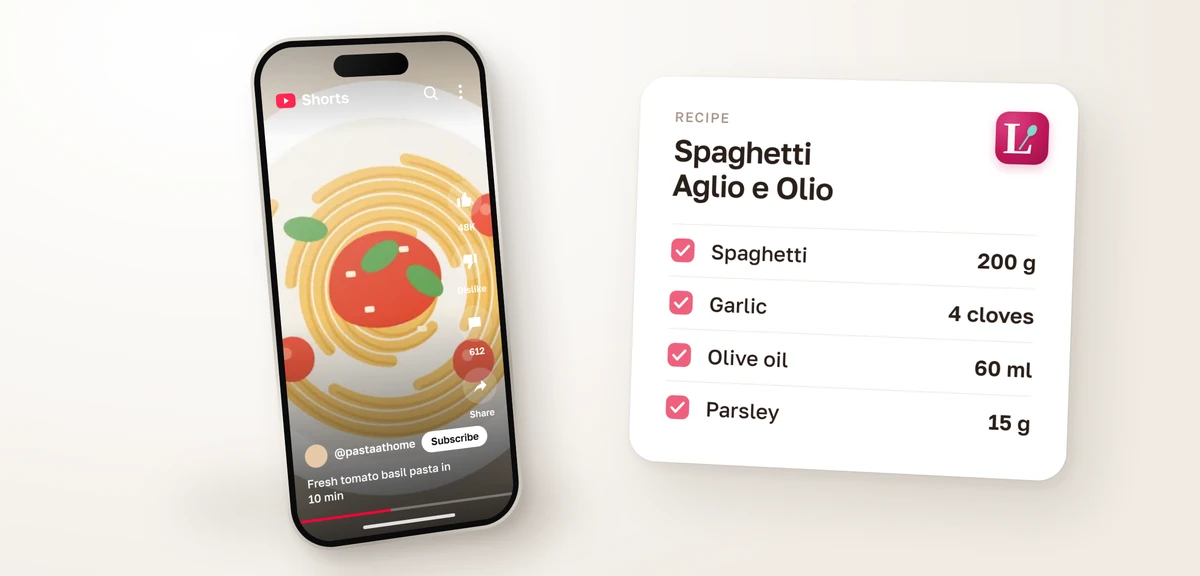
You watched a YouTube Shorts pasta recipe, thought "I'll cook that tonight," closed the app — and now it's gone. YouTube's save feature sends it to a playlist you never open. Even if you find the video again, you're pausing every five seconds to catch ingredient amounts while the creator talks at full speed. There is a faster way: copy the link, paste it in Lupita, and you get a complete recipe card — ingredients, quantities, steps — saved to your phone in under a minute.
Why YouTube recipes are hard to cook from
YouTube is the largest food recipe platform on the internet, but it was built for watching, not cooking. Full-length recipe videos run 10–20 minutes and bury ingredient lists in the middle of the video. Shorts pack 15 ingredients into 60 seconds at a pace impossible to follow with a pan in one hand. The description field — where most creators post the written recipe — is collapsed by default and easy to miss.
Save-to-playlist sends you back to the video every time. The video might be deleted, the channel might go private, or you might have 300 saved videos with no way to search by ingredient. Lupita solves this: one paste, one tap, the recipe is on your phone as a searchable card with scaled quantities — permanently, whether the video stays up or not.
What you need
An iPhone running iOS 16 or later, the YouTube app (or a browser), and Lupita — a free recipe saver that extracts ingredients from cooking videos using AI. Lupita gives you 5 free imports on install with no account required. The unit converter is free forever.
Three ways to copy a YouTube link
YouTube makes sharing straightforward. All three methods below produce a link Lupita accepts:
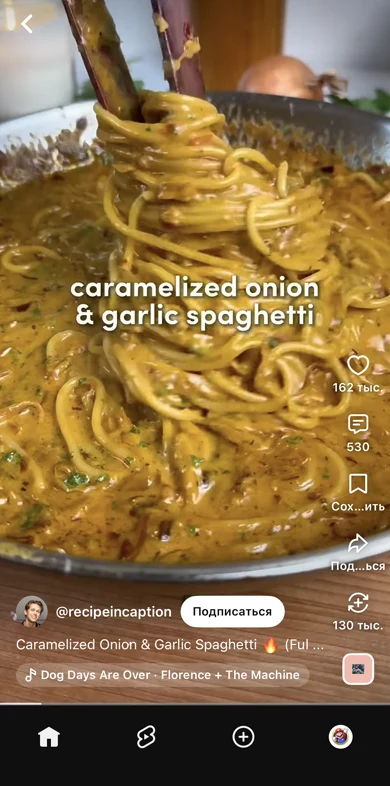
- YouTube app — Share button: Below any video or Short, tap the Share icon (arrow pointing right), then tap Copy link. The link is copied as a
youtu.be/XXXXXXXXXshort URL. - YouTube Shorts — arrow icon: On a Short, tap the arrow on the right side of the screen, then tap Copy link. Works the same way as the standard share.
- From a browser: Open the video on youtube.com and copy the URL from the address bar. Regular video URLs look like
youtube.com/watch?v=XXXXXXXXX; Shorts look likeyoutube.com/shorts/XXXXXXXXX. Both work in Lupita.
Four steps to save a YouTube recipe
-
1Copy the video link In the YouTube app, tap Share below the video and select Copy link. For a Short, tap the arrow icon on the right side and tap Copy link.
-
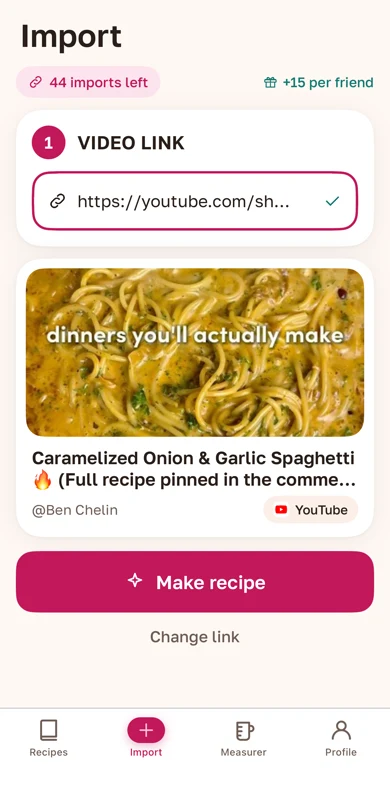
2Open Lupita and paste Switch to Lupita. Tap the import field at the top — the app detects the YouTube link and offers to paste automatically. Confirm and tap Import.
-
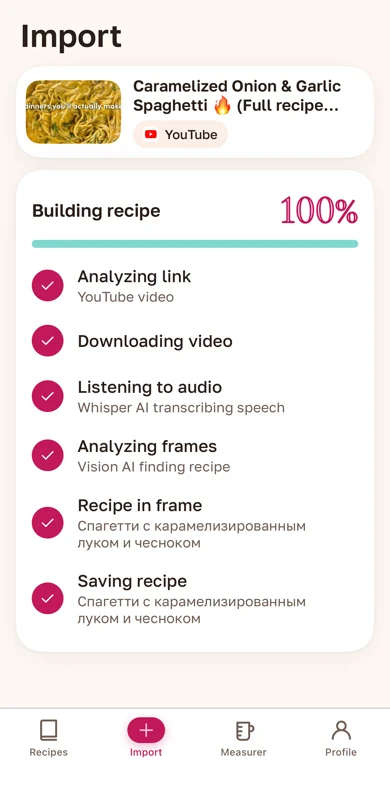
3Wait 20–60 seconds Lupita fetches the video, transcribes the audio, reads any on-screen text, and pulls the full description. It merges all three sources into one clean ingredient list with quantities. Long videos process in roughly the same time as Shorts — Lupita reads only the recipe-relevant parts.
-
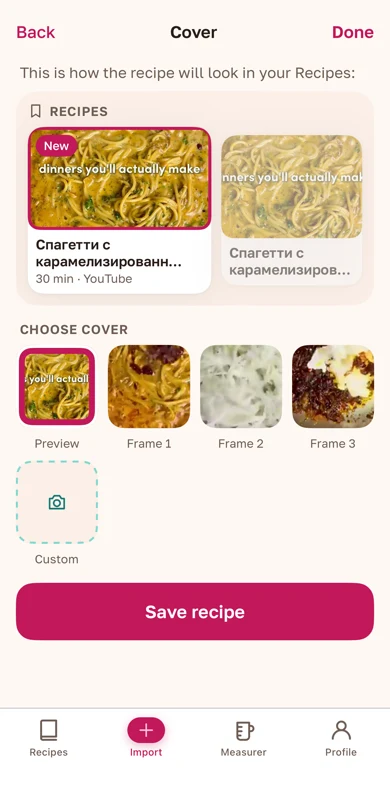
4Review, scale, and cook You get a full recipe card: title, ingredients with weights, step-by-step method. Change the serving count and every quantity scales proportionally. Tap Cook Mode for large-font steps with the screen kept on.
How Lupita reads a YouTube recipe
YouTube recipe creators spread their ingredient information across multiple layers: spoken audio during the cook-along, text overlays on screen, and a written list in the video description. A standard YouTube video might mention "a cup of flour" in speech, show "200 g flour" as an on-screen graphic, and list "flour — 200 g" in the description. Lupita reads all three and reconciles them:
- Fetches the video from YouTube's public servers — no sign-in required for public channels.
- Transcribes the audio using speech recognition, capturing spoken quantities and cooking instructions even when the creator talks quickly.
- Reads on-screen text (OCR) — ingredient cards, title cards, and text overlays that flash on screen for one or two seconds.
- Reads the description — many YouTube recipe creators post the full ingredient list and method below the video. Lupita pulls this automatically, even if it is collapsed.
- Merges and converts: The AI removes duplicates across all sources, resolves conflicts (description says 200 g, audio says "about a cup" — Lupita keeps the more precise figure), and converts all amounts to grams using real density values per ingredient. See the grams-to-cups converter if you want to understand how those conversions work.
- Saves locally: The recipe card is stored on your device. No cloud sync required; works offline after the first import.
Full YouTube videos vs. YouTube Shorts
Lupita handles both formats identically from your end — paste the link and tap Import. The difference is in where the recipe information tends to live:
- YouTube Shorts (under 60 seconds): Ingredients are usually spoken quickly or shown as on-screen text. The description is often short. Lupita's audio transcription does most of the work here.
- Full YouTube videos (5–30 minutes): Creators almost always post the full written recipe in the description. Lupita reads the description first, then cross-references with audio. These imports tend to be the most complete.
If a creator also has an Instagram or TikTok version of the same recipe, you can paste either link — or all three — and Lupita will save each as a separate card. The Instagram import and TikTok import guides walk through the steps for those platforms.
Measurement conversions in YouTube recipes
North American YouTube creators almost always give measurements in cups, tablespoons, and teaspoons. European and UK creators typically use grams. Many international creators mix both. Lupita stores all quantities internally in grams and displays them in whatever unit you prefer — so a channel based in Los Angeles and a channel based in London both end up in a consistent format on your phone.
If you want to convert a specific measurement yourself — for example, how many grams are in a tablespoon of butter versus olive oil — Lupita converts per ingredient using real density values, not a flat multiplier. You can also use the cups-to-grams converter for standalone lookups.
Troubleshooting — if the import doesn't work
- Private or unlisted video: Lupita can only fetch public videos. If the channel is private, the video is unlisted, or it requires sign-in, the import will fail with a "video unavailable" message.
- Age-restricted content: Videos flagged as age-restricted require a signed-in YouTube account to view. Lupita cannot bypass this restriction.
- "Invalid link" error: Make sure the URL contains
youtube.comoryoutu.be. YouTube Music and YouTube TV links are not supported. - No ingredients extracted: A small number of creators record silent cooking videos with no text overlays and no description. Lupita will show what it found and let you add or edit ingredients manually.
- Import is slow: Long YouTube videos take a few extra seconds to process. If the import stalls beyond 90 seconds, close and retry — the server may have been briefly busy.
Tips for better results
- Check the description before importing. If the creator wrote the full recipe in the description, the import will be especially accurate — Lupita prioritises the written list over audio when both are available.
- Import immediately. YouTubers delete videos, change channel settings, or restructure old content. Your Lupita card survives any of those changes.
- Use the YouTube share sheet. Tap Share in YouTube → find Lupita in the app list. This sends the link directly to Lupita's import field without going through the clipboard.
- Scale before you shop. Set the serving count to match your household before you go grocery shopping — every quantity adjusts automatically.
Stop pausing YouTube to copy ingredients.
Paste any YouTube or YouTube Shorts link. Lupita reads the video, the audio, and the description — and builds a complete recipe card in under a minute. 5 free imports, no account needed.
Frequently asked questions
Does Lupita work with regular YouTube videos, not just Shorts?
Yes. Lupita works with both full-length YouTube videos and YouTube Shorts. Paste any youtube.com or youtu.be link and Lupita processes it the same way. Full videos with a written description in the notes often produce the most complete recipe cards.
Can I import a recipe if the creator only wrote it in the description?
Yes. Lupita reads the full video description automatically — even when it's collapsed. If a creator posted the complete ingredient list and method below the video, Lupita captures it without needing the audio or on-screen text.
What if the YouTube video is very long — like a 20-minute cooking show?
Lupita extracts only the recipe-relevant content from the audio and description. Processing time is roughly the same for a 60-second Short and a 20-minute video — usually under a minute.
Does Lupita work with Instagram and TikTok too?
Yes. Lupita supports Instagram Reels, TikTok, YouTube, YouTube Shorts, and Pinterest videos. One paste, one tap — the same workflow for every platform.
Does the YouTube channel need to be public?
Yes. Lupita can only access public videos. Private channels, unlisted videos, and age-restricted content that requires a YouTube sign-in cannot be imported.
Can I share directly from YouTube without copying the link?
Yes. Tap Share in the YouTube app, then find Lupita in the share sheet. The link goes straight to Lupita's import field — no clipboard needed. If Lupita doesn't appear in the sheet, open it manually and paste from the clipboard.
Are my saved recipes available offline?
Yes. Once a recipe is imported, it's stored on your device permanently. It works completely offline — even if the original YouTube video is later deleted or the channel goes private.
How many recipes can I save for free?
5 imports on install, plus the unit converter (grams ↔ cups ↔ tablespoons) is free forever. Paid plans start at $2.99/month for 15 imports.