 Lupita
 Pinterest Recipes
How to Save a Recipe from Pinterest to Your iPhone
You scrolled through Pinterest, found the exact pasta recipe you wanted, saved it to a board — and now when you actually want to cook it you're hunting through 300 saved pins, zooming in on an image to read tiny ingredient text, losing your place mid-recipe.
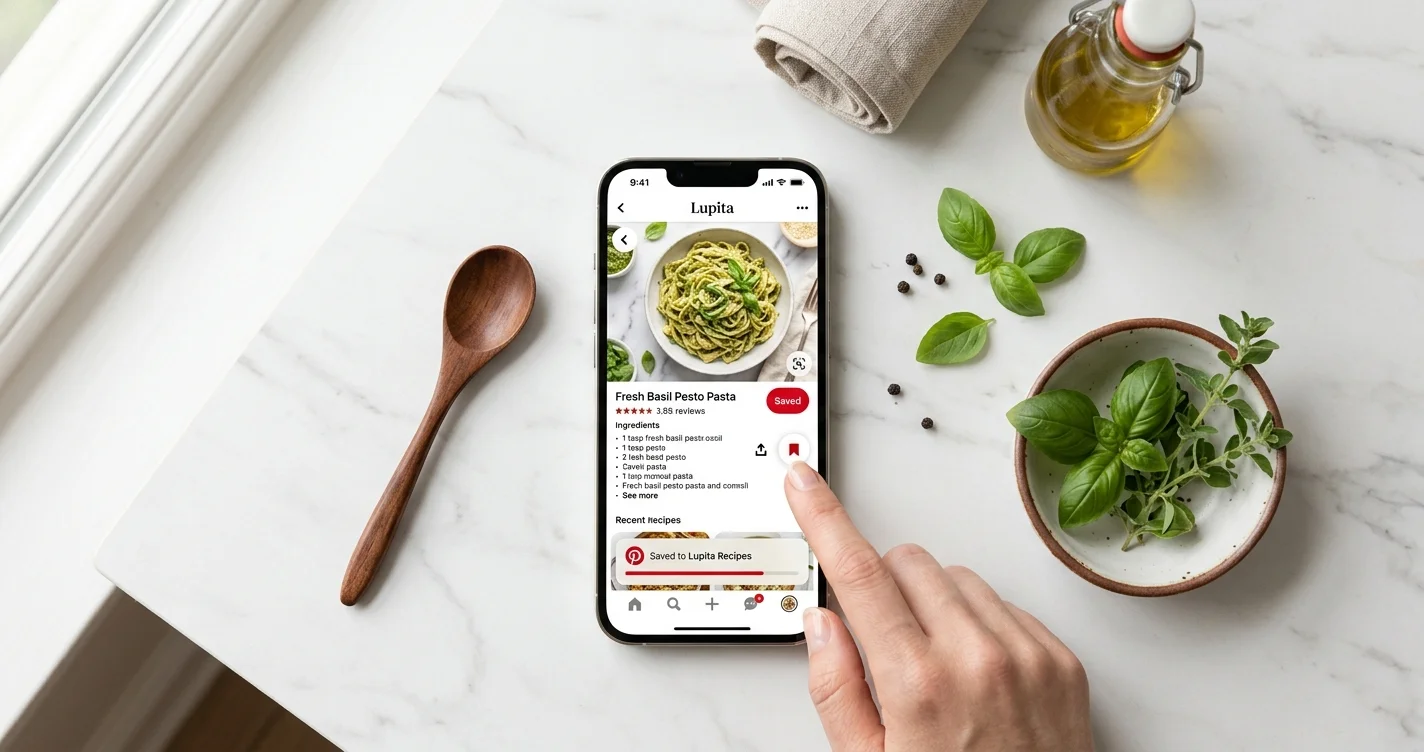
There is a better workflow. Copy the Pinterest pin link, paste it in Lupita, tap Import. You get a full recipe card on your iPhone — ingredient list with weights, step-by-step instructions, automatic serving scaler — ready to cook from without ever leaving the app.
Why Pinterest recipes are hard to cook from
Pinterest is built for discovery, not cooking. A pin is a bookmark — it points somewhere else. The actual recipe lives on a food blog, behind a paywall of ads, a life story, and "jump to recipe" buttons. When you open that link while cooking, you're managing a browser tab that auto-dimms, scrolling past pop-ups with floury hands, and trying to keep your place in a numbered list that doesn't track where you are.
On top of that, most Pinterest recipes use US volume measurements: 2 cups all-purpose flour, ½ tablespoon kosher salt, 3 teaspoons baking powder. If you cook by weight — as most professional and home bakers outside the US do — you need to convert every single line.
Lupita removes both problems at once: it fetches the recipe from the linked page, extracts the structured content, converts measurements to grams, and gives you a clean card that stays on screen while you cook.
What you need
- Lupita — free to download on the App Store, iPhone with iOS 16 or later
- Pinterest app or browser — any version works
- A recipe pin URL — both
pinterest.com/pin/…andpin.it/…short links are supported
How to copy a Pinterest pin link
There are three ways to get the link depending on where you see the pin:
- Pinterest app on iPhone: Open the pin → tap the share icon (arrow pointing up, top right) → tap Copy link.
- Pinterest app — from a board: Long-press any pin thumbnail → tap Copy link.
- Pinterest in a browser: Open the pin page → copy the URL from the address bar. It will look like
pinterest.com/pin/123456789/.
Both the full pinterest.com URL and the short pin.it link work. You do not need to be logged in to Pinterest to copy the link.
Four steps to save a Pinterest recipe
- Copy the pin link. Open the recipe pin, tap the share icon, tap Copy link.
- Open Lupita and paste the link. Tap the import field at the top of the screen. Lupita detects the Pinterest link in your clipboard and offers to paste it automatically. Confirm and tap Import.
- Wait 20–60 seconds. Lupita follows the pin to the source recipe page, reads the full ingredient list and instructions, then converts every measurement to grams.
- Your recipe is ready. Adjust the serving count — every ingredient amount scales automatically. Cook directly from the card without leaving Lupita.
How Lupita reads a Pinterest recipe
A Pinterest pin is not the recipe itself — it's a pointer. Lupita follows that pointer.
When you paste a Pinterest URL, Lupita resolves the pin and fetches the destination page — usually a food blog or recipe website. It then extracts the structured recipe data from that page: title, ingredient list with quantities and units, and step-by-step instructions.
If the recipe uses Schema.org Recipe markup (which most modern recipe sites do), Lupita reads the structured data directly — fast and reliable. If the page has no structured markup, Lupita parses the HTML to find the recipe section. Either way, you get the same clean card.
Measurement conversion happens in the same step. A line that reads "2 cups all-purpose flour" becomes "240 g all-purpose flour" in the final card. Lupita uses ingredient-specific density values rather than a single cups-to-grams number, so the conversion is accurate for each ingredient.
Pinterest boards vs. Lupita
Pinterest boards and Lupita solve different problems — they work best together.
Use Pinterest boards to discover and curate: save anything that looks interesting, build collections by cuisine or occasion, follow creators you like. That's what Pinterest is designed for, and it's excellent at it.
Use Lupita when you're actually cooking: the recipe is extracted from the source page, stored on your device, available offline, and scaled to however many servings you need. You never have to open a browser tab while cooking.
The workflow: find the recipe on Pinterest → copy the pin link → paste in Lupita → cook from the card. Takes 30 seconds once, saves friction every time you cook that recipe again.
Measurement conversions in Pinterest recipes
Pinterest skews heavily US-origin, which means most recipes use volume: cups, tablespoons, teaspoons, sticks of butter. For anyone cooking by weight this is a constant friction point.
Lupita converts all volume measurements to grams automatically using ingredient-specific density values. The conversions below show what Lupita produces for the most common Pinterest recipe units:
| Original | Ingredient | In Lupita |
|---|---|---|
| 1 cup | all-purpose flour | 120 g |
| 1 cup | granulated sugar | 200 g |
| 1 cup | butter | 227 g |
| 1 cup | whole milk | 244 g |
| 1 tbsp | olive oil | 14 g |
| 1 tsp | table salt | 6 g |
| 1 stick | butter | 113 g |
If a recipe already uses grams, Lupita leaves those values unchanged. See the full conversion reference in our grams to cups converter guide.
Troubleshooting
Lupita says "couldn't fetch the recipe"
The destination website may block automated access. Try copying the recipe website URL directly from your browser instead of the Pinterest pin link — the result will be the same recipe card.
The recipe imported but some ingredients are missing
The source page may have used an unusual layout. Check the original recipe and add missing items manually in Lupita using the edit button on the recipe card.
Measurements are in cups, not grams
Check that your unit preference in Lupita settings is set to metric. Settings → Units → Metric.
The pin opens to a page that requires login
Lupita cannot access pages behind a login wall. Look for the recipe on a public site and paste that URL instead.
I see the recipe description but no steps
Some older recipe pages store instructions as plain text without structured markup. Lupita will extract what it can — if steps are missing, the ingredient list is usually complete. Add steps manually using the edit button.
Tips for better results
- Import from the source page when possible. If a pin links to a well-structured recipe site, the import is faster and more complete. You can paste the recipe site URL directly instead of the Pinterest link.
- Pin.it short links work fine. If you copied a short link from the share sheet, paste it as-is — Lupita resolves it automatically.
- Use boards as a discovery queue. Save everything interesting to a "To try" board, then import to Lupita only when you plan to cook it. This keeps your Lupita library focused on recipes you actually make.
- Scale before you shop. Adjust servings in Lupita before going to the grocery store — the scaled ingredient list doubles as your shopping list.
- Check the cook time. Pinterest recipes often understate prep time. After importing, read through the steps and add a note with your realistic time estimate.
Frequently asked questions
- Does Lupita work with Pinterest short links (pin.it)?
- Yes. Both full
pinterest.com/pin/…URLs andpin.itshort links work the same way. Paste either format and Lupita resolves it automatically. - Can I save a recipe from a Pinterest board, not just a single pin?
- Paste the URL of an individual pin, not a board URL. Each pin links to a specific recipe page — Lupita extracts the recipe from that page.
- What if the Pinterest pin links to a blog that blocks scrapers?
- Try copying the recipe website URL directly from your browser instead of the Pinterest pin link. The result is identical and bypasses any Pinterest-specific block.
- Does Lupita work with Instagram and TikTok too?
- Yes. Lupita supports Instagram Reels, TikTok, YouTube, YouTube Shorts, and Pinterest. One paste, one tap — the same workflow for every platform.
- Can I import a recipe from a private Pinterest board?
- No. Private boards and secret pins require login to view. Lupita can only import recipes from public pins and public boards.
- Why does Pinterest show measurements in cups and tablespoons?
- Most Pinterest recipe creators are based in the US and use US volume measurements. Lupita converts cups, tablespoons, and teaspoons to grams automatically, so you see exact weights even when the original uses volume.
- How many recipes can I save for free?
- 5 imports on install, plus the unit converter is free forever. Paid plans start at $2.99/month for 15 imports per month.
- Are saved recipes available offline?
- Yes. Once imported, recipes are stored on your device and work completely offline — even if the original Pinterest page or the linked blog is later deleted.
Sources
- Pinterest — About — monthly active users and platform usage statistics
- Schema.org Recipe specification — structured data format used by recipe websites
- Lupita Grams to Cups Converter — ingredient-specific density values used in measurement conversion