iPhone App Tips
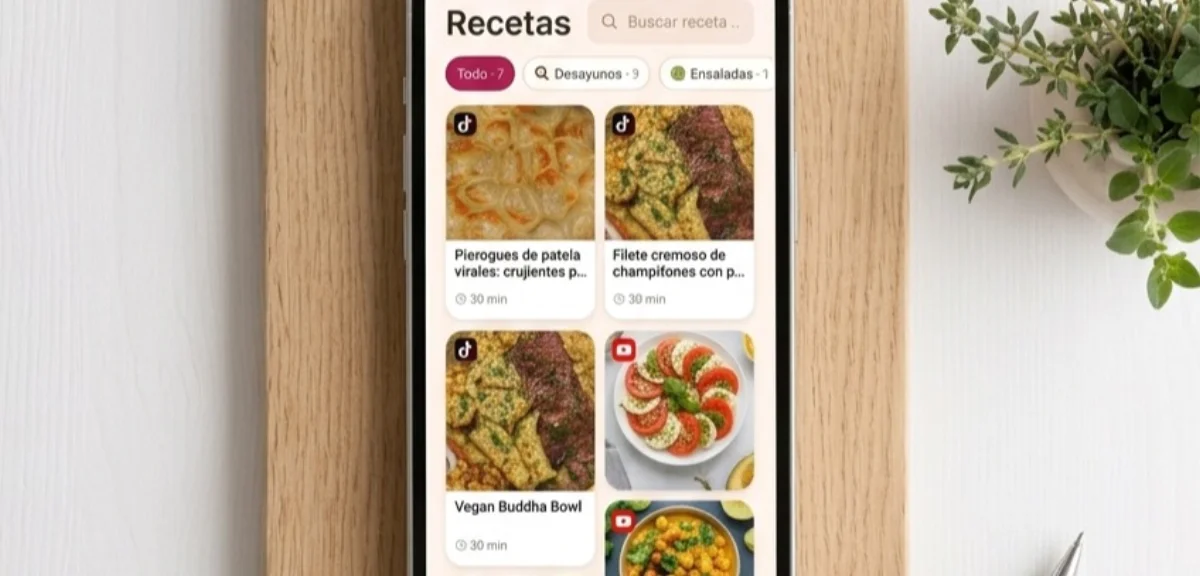
How to Save Recipes for Offline Use on iPhone (No Wi-Fi Needed)
Updated November 2026 · 5 min read
Quick answer
Every recipe you import into Lupita is stored locally on your iPhone. Once a recipe finishes processing — you see the card in your library — it's saved permanently on-device. Open it and cook with airplane mode on, in a basement, at a cabin with no signal. Import once, cook forever.
Why most recipe apps fail offline
Open Pinterest, Instagram bookmarks, or most web-based recipe apps without internet and you get a spinner, then an error. The reason: these apps don't save your recipes — they save a pointer to your recipes. The actual content lives on a server somewhere, and without a connection, there's nothing to show.
Even apps that advertise "offline access" often mean "we cache your recently viewed pages for a few hours." Close the app, restart your phone, and that cache is gone. You're back to needing Wi-Fi.
The situation is worse for video recipes. TikTok, Instagram Reels, and YouTube Shorts don't offer any kind of offline recipe card. Watch a Reel at the grocery store and try to find it again in your kitchen — good luck.
What Lupita saves locally
When you import a recipe into Lupita, the app downloads the video, extracts the recipe, and stores the result in a local SQLite database on your iPhone. The original video is processed and then discarded. What stays on your device:
- Recipe title — extracted from video audio and caption
- Ingredients with gram weights — converted from cups, oz or other units where needed
- Numbered steps — clean text, stripped of hashtags and filler
- Thumbnail image — a key frame from the video, cropped to 16:9, stored as a WebP file on your device
- Source link — the original URL, so you can credit the creator
What is not stored locally: the original video itself. Lupita never keeps the full video — only the extracted recipe card and thumbnail. This keeps storage use low (a typical recipe card with thumbnail is under 200 KB).
How to save a recipe for offline use
There's no "save offline" toggle — it happens automatically with every import.
- Import the recipe. Copy any TikTok, Instagram, YouTube or Pinterest link and paste it into Lupita's import field. Or use the iOS Share Sheet to send it directly from the source app.
- Wait for the checkmark. Lupita processes the video — typically 20–45 seconds for a Reel. When the recipe card appears in your library with a thumbnail, it's fully saved to your device.
- Turn off Wi-Fi and open it. You can test immediately: enable airplane mode and tap the recipe. Everything loads from local storage.
Pro tip: Import your recipes for the week before you go grocery shopping. By the time you're in the kitchen that evening, every recipe is already on your device — no connection needed at any point while you cook.
What works without internet in Lupita
| Feature | Works offline? |
|---|
| View any saved recipe | ✓ Yes |
| Search recipes by ingredient | ✓ Yes |
| Adjust serving size / scale recipe | ✓ Yes |
| Cooking screen (step-by-step view) | ✓ Yes |
| Browse your full library | ✓ Yes |
| View recipe thumbnail | ✓ Yes |
| Import a new recipe from a link | ✗ Needs internet |
| App updates | ✗ Needs internet |
In short: everything you do while cooking works offline. The only thing that requires a connection is the initial import — which you do once, in advance.
Lupita vs other offline options
| Method | Ingredients in grams | Works offline | Searchable | Import from video |
|---|
| Lupita | ✓ | ✓ Always | ✓ | ✓ |
| Apple Notes | Manual only | ✓ iCloud sync | Basic text search | ✗ |
| Instagram Saved | ✗ | ✗ | ✗ | ✗ |
| Browser bookmarks | ✗ | ✗ Link only | Title only | ✗ |
| Screenshots | Manual only | ✓ | ✗ | ✗ |
Why "saved" often means "saved a link"
When you bookmark a recipe on Pinterest or save a post on Instagram, you're saving a URL — a 40-character address pointing to content on someone else's server. That server might go down, the creator might delete the post, or the platform might show you a paywall the next time you visit. Your "saved" recipe is gone with no warning.
Lupita's approach is different: it copies the content itself onto your device at import time. The source link is kept as a reference, but the recipe — text, grams, steps, thumbnail — is yours permanently, independent of whatever happens to the original.
This distinction matters most when you're about to cook and have no signal. A link bookmark is useless. A locally stored recipe card is exactly what you need.
Tips for offline cooking
- Import the whole week at once. Spend 10 minutes on Sunday importing everything you plan to cook. The rest of the week, your recipes load instantly — with or without internet.
- Import before traveling. Going to a cabin, camping, or flying somewhere? Import your recipes before you lose signal. The app will work throughout the trip.
- Import at home, not in the grocery store. Mobile signal in supermarkets is often weak or congested. If you're importing a recipe to check the ingredient list at the store, do it on your home Wi-Fi first.
- Confirm the card is in your library before going offline. A recipe is saved when you can see the full card with thumbnail in your Lupita library. If the import is still showing "processing," wait for it to finish.
FAQ
- Does Lupita work in airplane mode?
- Yes. All recipes you've already imported are stored on your device and load instantly in airplane mode. You can browse your library, search by ingredient, scale servings, and follow the cooking screen — all without any connection.
- How much storage do offline recipes take?
- Each recipe card (text + thumbnail) uses roughly 100–200 KB. A library of 200 recipes takes about 30–40 MB. The original video is never kept — Lupita only stores the extracted card.
- What if I delete the app — do I lose my recipes?
- Yes. Lupita stores recipes in the app's local container. Deleting the app removes all data. If you re-install, your library starts empty. For this reason, treat importing as a one-time step you do when you have internet, not as a temporary cache.
- Can I access Lupita recipes on multiple iPhones?
- Currently Lupita stores recipes per-device. If you sign in on a second iPhone, your library is not automatically synced — you'd need to re-import on the new device. Cross-device sync is on the roadmap.
- Does Lupita work offline on iPad?
- Yes. The offline behavior is identical on iPad — all imported recipes are stored locally and available without internet. The larger screen makes the cooking view particularly comfortable on iPad.
Sources: Apple App Store product descriptions (2026). Reddit r/EatCheapAndHealthy community research on offline recipe apps.
 Lupita