iPhone App Tips
How to Organize Recipes on iPhone: 5 Methods That Actually Work
Updated November 2026 · 5 min read
Quick answer
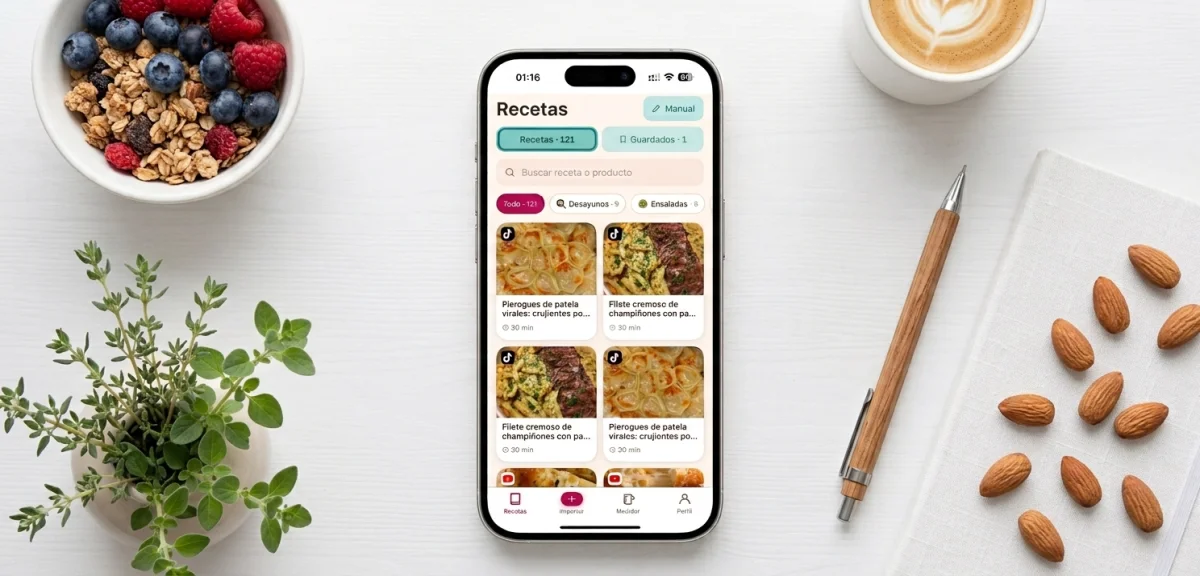
The fastest method: copy any TikTok, Instagram, or YouTube recipe link, paste it into Lupita — it creates a searchable card with ingredients in grams automatically. No manual entry. Find it later by ingredient name, recipe title, or source platform.
Why most people fail at recipe organization
Ask anyone who cooks regularly how they save recipes and you get the same three answers: a Notes app folder, screenshots buried in Photos, or Instagram bookmarks. All three work for a week, then fall apart.
- Notes links break. You paste a URL from a food blog, three months later the blog redesigns, the URL is dead. The recipe is gone.
- Screenshot folders become black holes. After 200 screenshots you can't find anything. Photos search can read text in images since iOS 15, but it misses ingredient quantities and returns 40 results for "pasta."
- Instagram bookmarks disappear with accounts. When a creator deletes their account or goes private, your saved Reel is gone. No warning, no copy.
- No grams. Even when you find the screenshot, it says "2 cups flour" — which you then have to look up and convert while your butter is already browning.
The fix is to get recipes out of these places and into a dedicated library with real structure. Here are five ways to do that, from most efficient to most manual.
Method 1 — Import from video (fastest)
Method 1
Import directly from TikTok, Instagram, YouTube, or Pinterest
This is the only method with zero manual work. Copy the link to any cooking video, open Lupita, tap + Import, paste the URL. Lupita analyzes the video and caption, extracts the recipe, converts measurements to grams, and saves a structured card to your library.
- Takes 20–45 seconds per recipe
- Works for TikTok, Instagram Reels, YouTube, YouTube Shorts, Pinterest
- Ingredients appear in grams — no conversion needed
- The original video link is kept, so you can always credit the creator
- Recipe is stored offline immediately after import
iOS Share Sheet shortcut: On TikTok or Instagram, tap the Share icon and choose Lupita directly — no copy-paste needed. The recipe starts importing in the background while you keep scrolling.
Method 2 — Manual entry
Method 2
Type a recipe by hand
Use this for recipes that exist only on paper — a handwritten card from your grandmother, a dish you invented yourself, or something from a physical cookbook you don't want to photograph. In Lupita, tap + Import → Enter manually. Add a title, paste or type the ingredients, add steps. It takes 3–5 minutes for a typical recipe.
Manual entry is worth doing for recipes you cook every week. For anything you might cook once, import-from-video is faster and good enough.
Method 3 — Organize with collections
Method 3
Group recipes into collections
Once you have more than 30–40 recipes, browsing a flat list gets tedious. Lupita lets you create named collections and assign any recipe to one or more of them.
Collections that work well in practice:
- Weeknight Dinners — quick recipes under 30 minutes
- Meal Prep — batch-friendly recipes that keep for 4+ days
- Baking — anything with flour, leavening, and an oven
- Tried & Loved — recipes you've made and want to repeat
- Want to Try — imported from videos, haven't cooked yet
To add a recipe to a collection: open the recipe card, tap the bookmark icon, choose a collection. You can assign the same recipe to multiple collections.
Method 4 — Search by ingredient
Method 4
Find recipes by what's in your fridge
This is where having grams matters. Because Lupita stores structured ingredient data — not just a photo or a URL — you can search inside the recipe content, not just the title.
Practical example: you have zucchini, chicken, and lemon in the fridge. Type "zucchini" in the Lupita search bar — it returns every recipe in your library that uses zucchini as an ingredient, with the quantity. Same for "chicken thigh" or "lemon zest."
No other method (Notes, screenshots, Instagram) can do this. It's the difference between a recipe archive and a recipe tool.
Method 5 — Use the cooking screen
Method 5
Cook from the app without losing your place
Organization doesn't stop at storing recipes — it extends to actually using them in the kitchen. Lupita's cooking screen keeps your iPhone display on (no auto-lock), shows one step at a time in large text, and lets you tap through steps with one hand while your other hand is covered in dough.
To enter cooking mode: open any recipe card, tap Start Cooking. The screen shows step 1. Tap anywhere to advance. The serving count at the top lets you scale the recipe on the fly — all gram weights update immediately.
Lupita vs other methods
| Feature |
Lupita |
Apple Notes |
Instagram Saved |
Screenshots |
| Search by ingredient |
✓ |
✗ |
✗ |
✗ |
| Works offline |
✓ |
✓ |
✗ |
✓ |
| Ingredients in grams |
✓ |
✗ |
✗ |
✗ |
| Survives account deletion |
✓ |
✓ (if URL-based, link dies) |
✗ |
✓ |
| Import from TikTok/YouTube |
✓ |
✗ |
✗ |
✗ |
FAQ
- How many recipes can Lupita store?
- There's no hard limit on stored recipes. Free accounts get 10 import credits to start. Paid plans (Mini, Plus, Pro) add monthly import credits — but recipes already imported stay in your library forever regardless of your plan.
- Can I organize recipes imported from different platforms together?
- Yes. TikTok, Instagram, YouTube, and Pinterest recipes all land in the same library with the same card format. The source platform is tagged on the card so you can still filter by origin, but collections and ingredient search work across all sources.
- Can I export my recipe library?
- Yes. Each recipe card can be shared as a PDF or plain text. For bulk export, contact support@lupita-app.com — the team can provide a JSON export of your full library.
- What if the video extraction misses an ingredient?
- Open the recipe card and tap Edit. You can add, remove, or correct any ingredient or step. The edit is saved locally and doesn't affect the original video or source link.
- Does Lupita work for recipes in languages other than English?
- Yes. Lupita extracts the recipe in the language of the original video or caption. If a TikTok chef narrates in Spanish, the recipe card will be in Spanish. The app interface is available in English, Spanish, and Russian.
Sources: Apple iOS 15 release notes (Live Text in Photos). Tested on iPhone 15 Pro, iOS 18.2, Lupita v1.0.
 Lupita